 Online File / Folder Sharing
Share folders with other users
There are several ways to share files / folders on DriveHQ.com. A quick method is to share your username & password with other users, which is obviously not secure,
but might be ok if you only share with a few people that you fully trust.
DriveHQ has better ways of sharing folders / files on DriveHQ website.
- Method 1:
From "My Storage" page or "Show Folder" page, select a folder (or file) and click the "Share" button, see below:
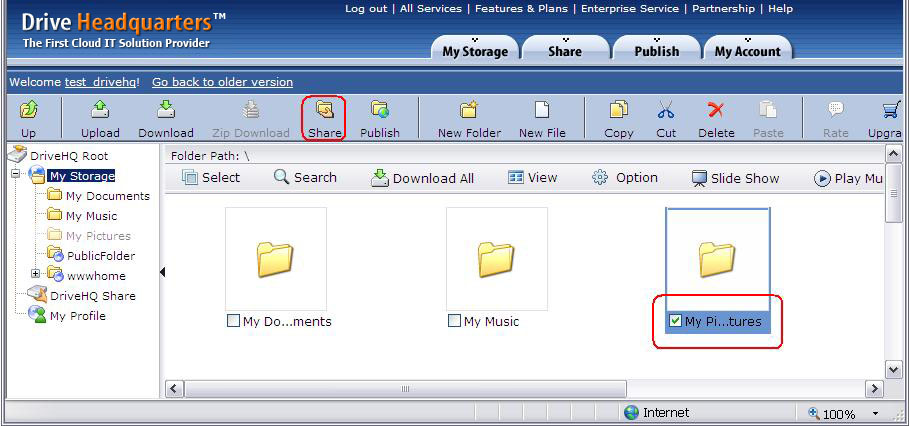
After clicking on the "Share" button, it goes to the "Set Permission" Page, as shown below:
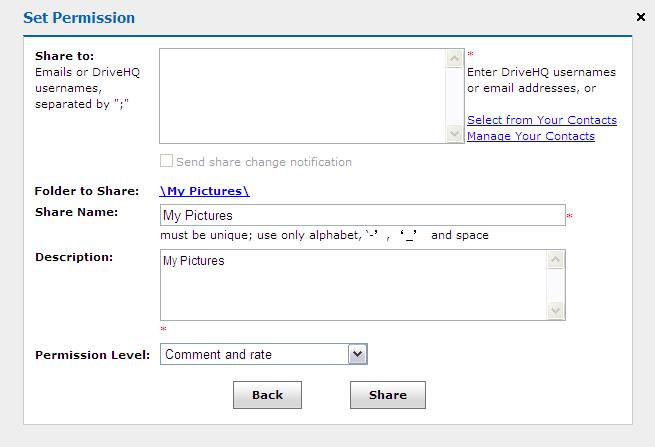
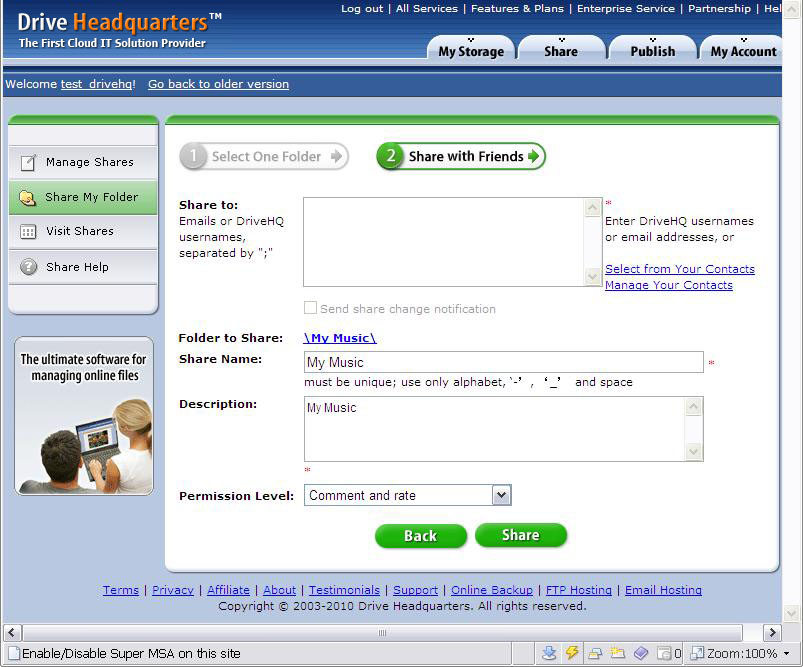
Users can enter email addresses or DriveHQ usernames in the "Share with" field. (Separated by semicolons).
You can also change the default "Share Name", "Description", "Permission Level".
- Method 2:
From the Manage Shared Folders page, click the "Add" button, see below:
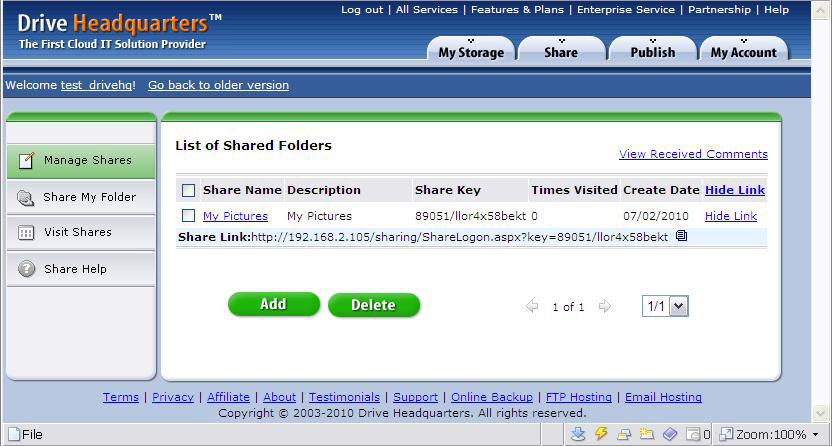
After clicking the "Add" button, it will go to the "List of Shared Folders" page. Select a folder and click the "Select" button,
or click the "New Folder" button to create a new share folder, see below:
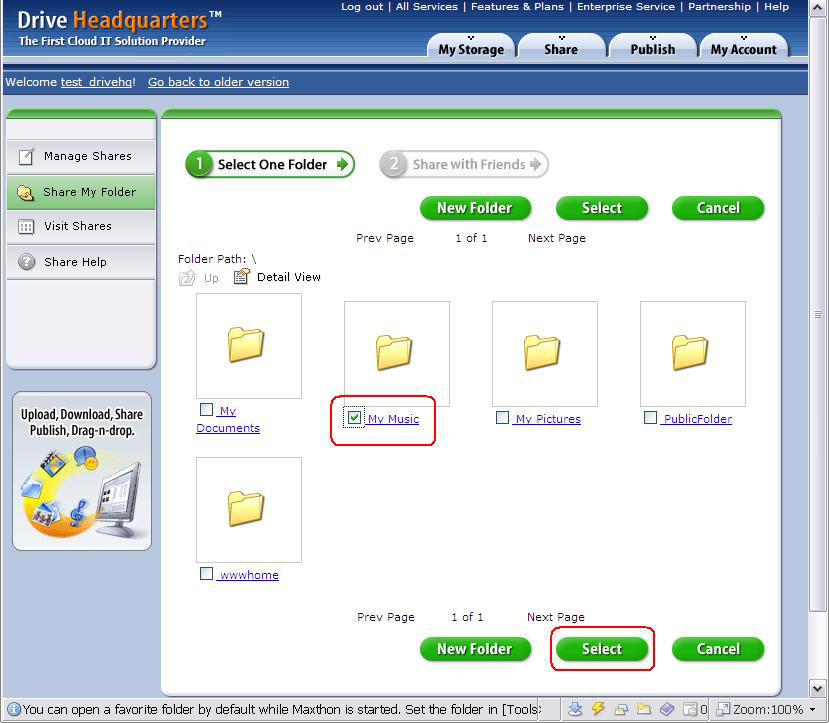
After selecting a share folder, it will go to the "Share & Set permission" page, shown as below:
*** Share Permission Levels ***
There are a total of 4-6 permission levels:
- Larger View Only (can display file / folder list, file icons or preview images, but cannot download original files);
- Original View Only (read-only);
- View Comment & Rate (Read-only and read comments to the share);
- Comment and Rate (Read-only and comment the Share);
- Upload / Add (Can upload (add) files / folders to the shared folder, but cannot delete / modify them);
- Upload / Edit (Can upload files / folders to the shared folder; can edit files in it, but cannot delete / modify them);
- Full Access.
*** File Change Notification ***
"Send file change notification email":
When this option is checked, and if somebody uploads a new file or changed a file in the shared folder, the system will prompt
the user to send a "New file notification email" to all users in the share-recipient list.
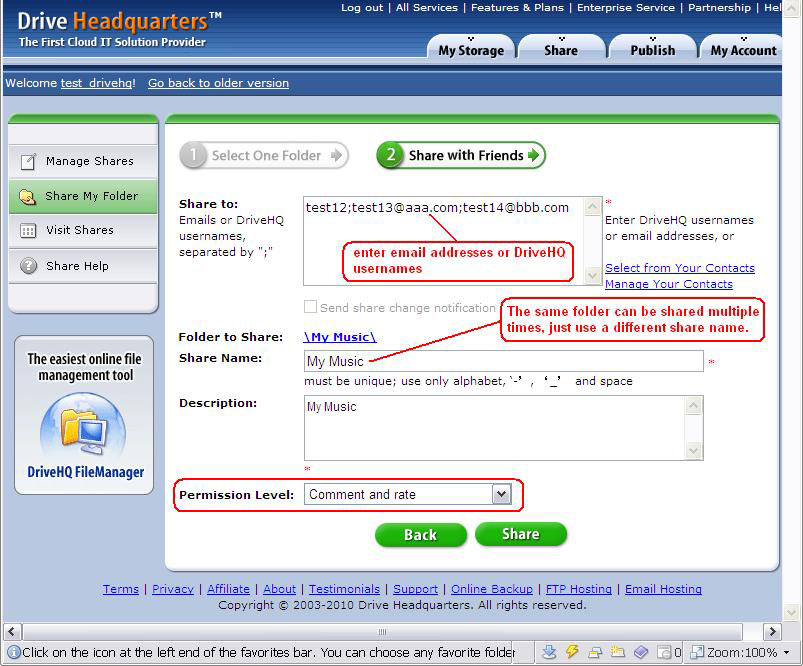
After entering the share info, click the "Share" button, it goes to the "Share Notify" page. Please note the share has been created at this step.
However, the share notification email has not been sent yet. You can click the button to open your email client
software or use DriveHQ webmail to send the notification email.
*** About Share Notification Email ***
Note: DriveHQ no longer automatically sends share notification emails. Notification Emails sent from DriveHQ email server is
sometimes filtered by recipients' spam filters; it is also often ignored by the recipients. Therefore, sending the "share notification" email using your
own email server is better.
Share Notification email is not always needed.
If all share recipient users are DriveHQ members, then the share notification email is not needed.
The share recipient users can simply log in to www.drivehq.com
using their own username and password. The folders shared with them are automatically linked in the special virtual folder: "DriveHQShare".
2.gif) If any user downloads your shared file, or uploads files to the shared folder, they will be using your "download bytes" and "storage space". You can subscribe to our service to receive more storage space and more download bytes!
If any user downloads your shared file, or uploads files to the shared folder, they will be using your "download bytes" and "storage space". You can subscribe to our service to receive more storage space and more download bytes!
 |
Top |
Share with a group
To create a group share, you must be a group member (usually a Group Owner or Group Administrator). Click here to get more info.
- If you are a group admin:
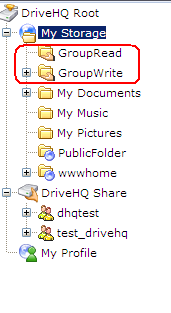
Once you create a group, the system automatically creates and shares two folders "GroupRead" and "GroupWrite" for group members.
You can copy files into these folders to share with your group.
GroupRead: It is shared with the permission level of "Comment and Rate (read-only)";
GroupWrite: It is shared with the permission level of "Full Access".
- If you are a group member:
If you are a group member, you can access the shared folder very easily by logging on to your group account and look in the DriveHQShare folder. There are two ways for you to Share with your group:
- You can directly transfer the data you want to share with your group to the "GroupWrite" folder.
- Refer to How to share folders with other users?. In "Set Permission" page, you can click on the "Select from Your Contacts" link.
More detailed info about "Contact Group" is available in: "DriveHQ Email Hosting Service".
|
Top |
Access folders shared by other users
Assume UserA shared a folder to UserB using UserB’s email address, if UserB is not a DriveHQ member, then UserB will receive a Share Notification email. In the Share Notification email, there are detailed instructions about how to access the Shared folder. The instructions are as follows:
- If you are a DriveHQ member, please log on to your account and access these files in the "DriveHQShare" folder.
- If you are not a DriveHQ member yet, I recommend you to sign up now using this e-mail address. My files will automatically appear in your "DriveHQShare" Folder.
- You can also access these files through the following link (you will have read-only access).
https://www2.drivehq.com/sharing/ShareLogon.aspx?password=*******/************
You can share different folders to different users with different levels of access rights.
You can also share the same folder to different users with different levels of access rights.
Please note: Share Names must be unique. So when you share the same folder again, you must use a different share name. (See the screenshot about "Share and Set Permission page").
|
Top |
Manage Shares
If you share a folder, the new share is added to the "Shares" list. You can modify the share or delete the share later. To do so, you should log on www.drivehq.com, go to "My Storage" page, click on "Share" tab, then click on "Manage Shares". It will display the "Share List" page:
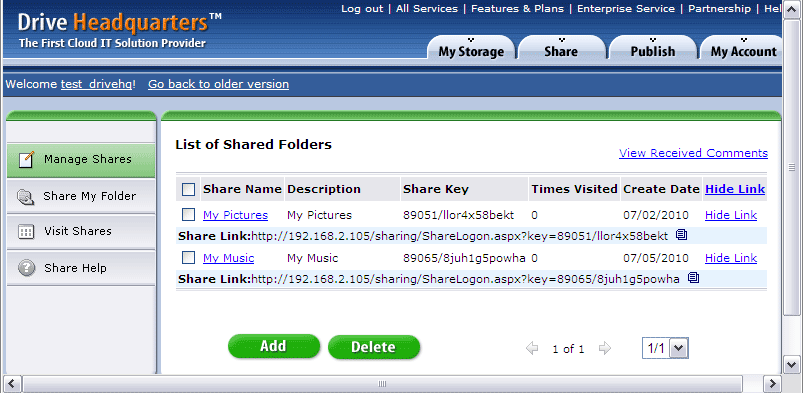
You can select a share and click on the Delete button to delete it. To modify (edit) an existing share, just click on the Share name. It will go to the same Share & Set Permission page where you can change the Share name, change "Share with" users, change the permission level, etc. After you have finished editing the existing Share, click on Save to save the changes; it will create a share notification email template and let you send a new Share notification email. Again, the share notification email will not be sent automatically. You can easily launch Outlook or other email client to send the notification email. A "Launch Outlook / Other Email Client" button is included for quickly launching a new Outlook email Window.
From the Share List page, you can also copy the Share Link. The Share Link (or Share URL) is different from Publish Link (or Publish URL). If you open a new web browser and enter the Share URL, it will ask for email verification. You must enter the email address that’s included in the Share-to list of the Share. A Publish URL directly opens the published folder or file without any verification.
|
Top |
Bandwidth Limit on Sharing and Publishing Files
To avoid abuse there is a limit placed on your bandwidth usage if we believe it is unreasonably high. In general you don't need to pay for bandwidth;
if your account has high activity (including other people accessing your shared/published files), it could run out of bandwidth and your files will
no longer be accessible. Bandwidth limit is based on monthly usage and is automatically reset after one month.
|
Top |