In the Cloud file management pane (remote pane), you can manage online files and folders in the same way as in the Windows Explorer window.
- Structure of your online storage
The default user interface displays the remote files on the left-hand side and local files on the right-hand side; this is like a lot of FTP client software.
You can click the Display button to change the layout. Click the Display button, and then it will display a pull-down menu, as shown below:

If you click "Show DriveHQ.com files only", it will display the following dialog:
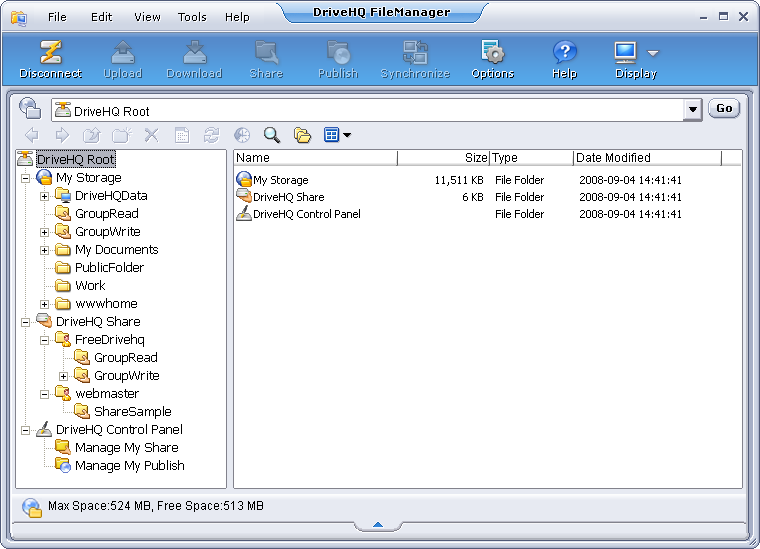
When showing DriveHQ.com files only, it displays the remote folder tree on the left-hand side; on the right-hand side, it displays the selected folder contents.
As you can see in the left-hand side, the root folder is "DriveHQ Root". It is a virtual folder containing 3 folders:
- My Storage: It is a virtual folder that contains all folders and files of this user account.
Folders and files in "My Storage" virtual folder are real. They are owned by the user. By default,
folders and files are secure and private, unless shared with other user(s) or published for anybody to access. Users have full access to files and folders in their
own "My Storage". They can create folders; upload files; edit, delete, or download files and folders; share or publish folders and files, etc.
- DriveHQShare: It is a virtual folder that contains all folders / files shard with this user by other DriveHQ members.
In the above screenshot, you can find one or two virtual folders in "DriveHQShare": "webmaster" and GroupAccountUserName.
These are the usernames who shared folders with this user.
If you are a sub-user of a group account, you will see the virtual folder: GroupAccountUserName.
You might see two subfolders in it: GroupRead, and GroupWrite.
They are two folders shared with you by your Group Owner.
If more users shared folders with you, they will also appear in your "DriveHQShare" in the following format:
[\DriveHQShare]\USER_NAME\SHARE_NAME\FOLDER_NAME\...
-Or-
\\USER_NAME\SHARE_NAME\FOLDER_NAME\...
"DriveHQShare", "USER_NAME" and "SHARE_NAME" are all virtual folders. Virtual folders cannot be deleted or renamed.
Usually you cannot upload files to a "virtual folder", except the "My Storage" root folder and shared folders like \\USER_NAME\SHARE_NAME\.
- DriveHQ Control Panel: It is a virtual folder linking to all tools for setting up your account options and managing the share and
publish lists. It can also be accessed from the Tools menu.
- Navigate through online files and folders
- Select the destination folder from the drop-down list on the top right corner;
- Enter a folder by double-clicking it in the online pane;
- Click
 to go to the folder visited previously;
- Click
 to go to the folder visited next;
- Click
 to go to the parent folder.
- Create new online folders
- Click the
 button to create a new folder, and specify the folder name;
- Or, right-click in the blank area of the cloud pane, click New in the popup menu, and select "New Folder".
- Rename cloud files and folders
Click the folder or file to rename, click again or right-click and select Rename in the popup menu; enter the new name in the edit box.
- Copy and Paste online files and folders
Right-click the file or folder to copy, and select Copy in the popup menu; navigate to the destination folder; right-click the blank area of the cloud pane, select Paste in the popup menu.
- Delete online files and folders
Select the file or folder to delete, click the  button or press the Delete key; click Yes in the confirmation dialog box if you want to delete, or click No to cancel.
- Set view options on cloud files and folders
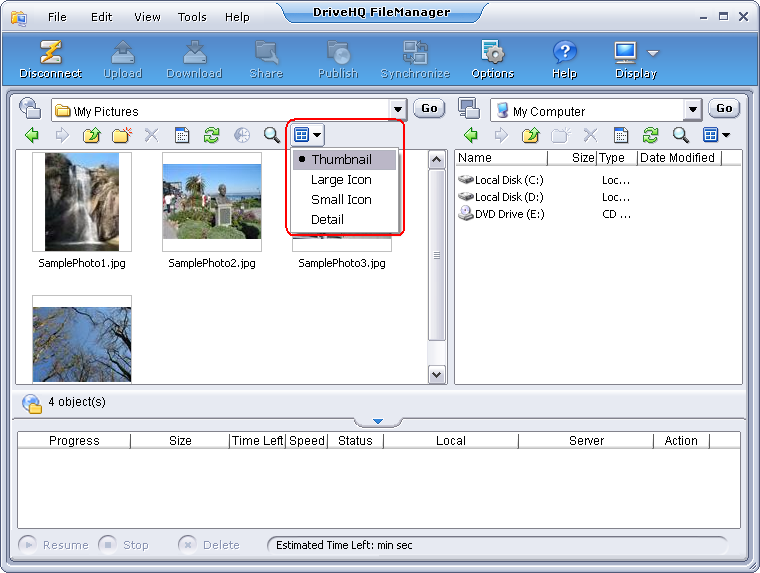
DriveHQ FileManager can display folders in Thumbnail, Icon, or Detail View. By default, it displays folders in detail view. You can change it to other view by clicking in the toolbar, as shown below:
- Arrange files in a folder
Right-click in the blank area of the cloud pane, select "Arrange Icons By" from the popup menu, and choose one of the four options: "Name", "Size", "Type", and "Modify Time".
- View properties of cloud files and folders
Select the file or folder to view property, click the  button, or right-click the file name, and select "Properties" in the popup menu.