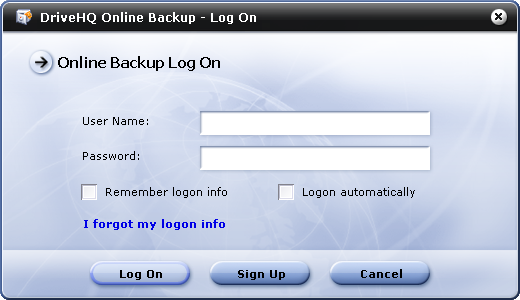
Using DriveHQ Online Backup for the First Time
The first time you start DriveHQ Online Backup on a computer, it will display the following dialog.
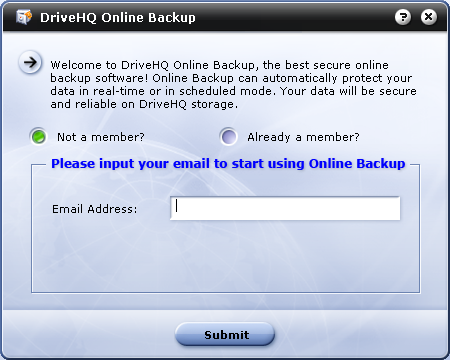
- If you don't have an account on DriveHQ.com, you can sign up for a free account.
You can enter your email address and click "Submit", it will display the following dialog.
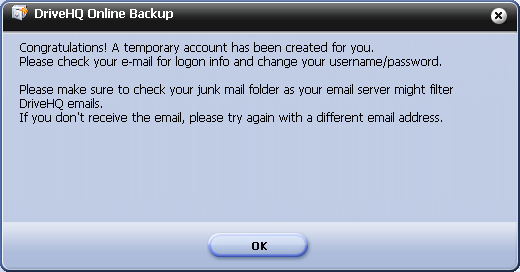
Click "OK", it will display the following dialog:
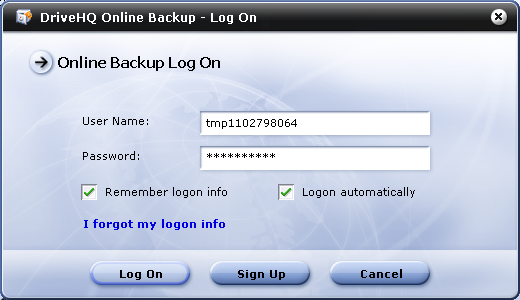
Note: this is a temporary account. The DriveHQ system will automatically send you a welcome email, where you can find your temporary username and password. Usually the email is delivered within 10 minutes. Sometimes, it could take up to half an hour.
After you receive the email, you must follow the instruction to log in to www.drivehq.com, then change your username and password to your own permanent username and password.
If you don’t receive the welcome email, please make sure you check your junk / bulk / trash mail folders. Most likely your email server (or your ISP) has filtered / blocked DriveHQ email. If you still cannot receive the email, please contact your system administrator or ISP not to block DriveHQ emails, or try a different email address (using a different email server or different ISP).
- If you already have a DriveHQ account, please select "Already a member" and then proceed to log on.
Log on to Your Account
By default, your account infomation is saved. When a DriveHQ application starts to run, it will automatically log you in to your account.
If you changed your login options last time, then you will need to log in manually.
Click any button on the screen, it will pop up a "Login" dialog as shown below.