Manage Cloud Emails and Mail Boxes
In the online email management pane (remote pane), you can manage online emails and folders in the same way as in the Windows Explorer window. In specific, you can:
- Structure of your online emails and folders
- Navigate through online emails and folders
- Create new online folders
- Rename online folders
- Delete online emails and folders
- Browse email online
- Structure of your online emails and folders
When you register a new account on DriveHQ.com and order a service, you also receive an email account. The email address is YourUserName@firstcloudit.com.
You can manage your drivehq emails from the Online Email Pane. It has five main email folders: Inbox, Sent, Draft, Trash and Bulk.
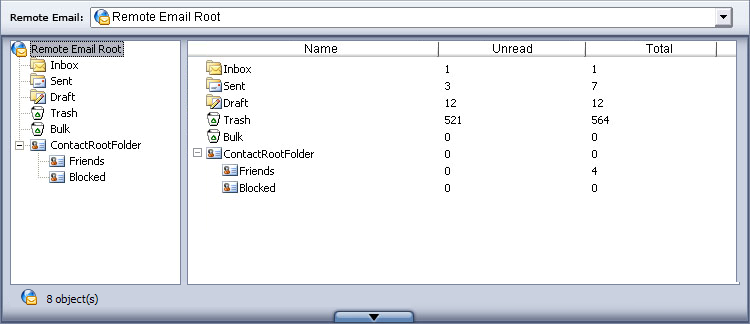
- Navigate through online emails and folders
- Select the destination folder from the dropdown list on the top-right corner;
- Enter a folder by double-clicking it in the online pane;
- Click on
 to go to the folder visited previously;
- Click on
 to go to the folder visited next;
- Click on
 to go to the parent folder.
- Create new online folders
- Click the
 button to create a new folder, and specify the folder name;
- Or, right-click in the blank area of the cloud pane, select New in the popup menu.
- Rename cloud folders
Click the folder to rename, click again or right-click and click Rename in the popup menu; enter the new name in the edit box.
- Delete online emails and folders
Select the emails or folder to delete, click the  or click Delete from the right-click pupup menu;
click Yes in the confirmation dialog box if you want to delete, or click No to cancel.
or click Delete from the right-click pupup menu;
click Yes in the confirmation dialog box if you want to delete, or click No to cancel.
- Browse email online
The cloud server side also supports browsing emails online. Just double click an email or click Open in the right-click menu.