- Select a cloud or local folder and then click
 ,
or right click a folder name and then select "New synchronization"
from the popup menu. It will pop up the following dialog:
,
or right click a folder name and then select "New synchronization"
from the popup menu. It will pop up the following dialog:
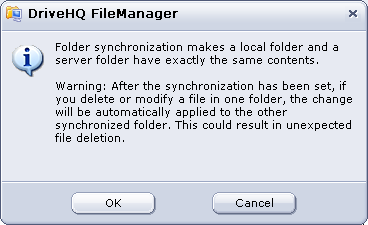
- Click "OK" to continue, it will let you select the other synchronized folder:
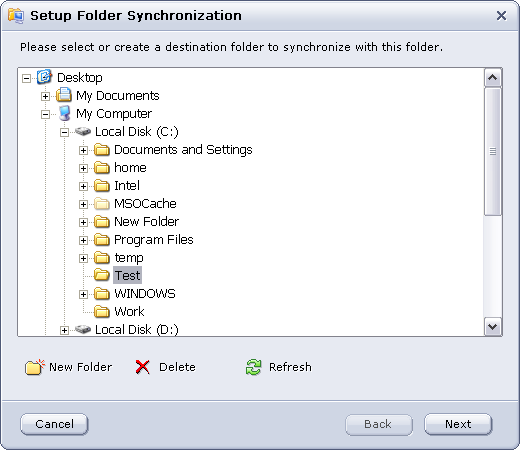
- If you want to synchronize it with a new folder, you can click the "New Folder" button,
which creates a new folder to be sync-ed with the selected folder. Once you have selected the Sync target folder,
click on "Next", it will pop up the following dialog:
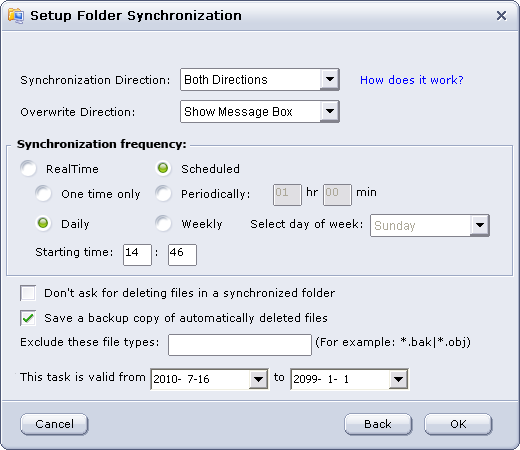
There are a lot of options / features in this page. Please read the detailed explanations below:
Synchronization direction: There are three directions
for you to choose: Server to Local, Local to Server and Both directions. Please read more details below.
Overwrite Direction: There are four directions for you
to choose: Show MessageBox, Overwrite Local, Overwrite Remote and Overwrite Older.
Synchronization Frequency: There are two general modes for you to choose: Real-time and Scheduled.
In scheduled mode, there are four options for you to choose:
- One time only: you can set the starting time for the synchronization that will be finished for one time;
- Periodically: you can set the interval for periodically synchronization task;
- Daily: you can set the starting time for daily synchronization task;
- Weekly: you can select one day of week.
Time Delay in Real-time Folder Synchronization
Once you have created a real-time synchronization task, it will automatically sync local files to the remote folder in real-time as any change occurs. Synchronizing files from the remote folder to the local folder may take a little longer time. When a file is changed (or added) in the remote folder, DriveHQ FileManager cannot immediately detect such changes. It checks file changes in the remote folder periodically. Usually between 5 minutes to half an hour. When it detects such changes, it will sync the changes to the local folder.
Once you have created a real-time synchronization task, it
will automatically upload/download files to the other folder in real-time as
any source file change occurs.
About One-Way Synchronization
It could be quite confusing about one-way synchronization. Different implementations handle it differently. Please make sure you understand it very well, otherwise it could cause files being deleted accidentally.
The most important thing to know is: whether one-way or two-way synchronization, when the two folders are (manually) synchronized, the folder contents must be exactly the same.
For example a server folder S is configured to sync to a local folder C in a one-way synchronization,
assume S and C is already sync-ed, now think about these cases:
(1) If you add a file to S, the file will be sync-ed to C, which is as expected;
if you add a file in C, the new file is deleted from folder C when next synchronization happens.
(2) If you change a file in S, it will be sync-ed to C; but if you change a file in C, it will be overwritten;
(3) If you delete a file in S, it will be deleted in C; but if you delete a file in C, it will be added back.
In short, if you have a one-way synchronization from A to B, then no matter what happens,
after it finishes synchronizing, B will become the same as A.
Exclude these file types: Define the files or file types to be excluded from the synchronization task. Multiple file extensions, file names or file wildcards can be entered (separated by a comma or semicolon).
Note: After the Synchronization Task has been set, if you delete or modify a file in one folder, the change will be automatically applied to the other synchronized folder. You can uncheck "Don't ask for deleting files in a synchronized folder" to avoid unexpected file deletion .
Moreover, you can check "Save a backup copy of automatically deleted files" so that you recover your data in case of automatic file deletion.
- After you have finished all above, click "OK",
it will show the task progress dialog to begin transferring files and folders to the target folder.
Click "Tools" -> "Manage synchronization",
the "Manage Folder Synchronization" screen will show up,
you can Disable/Enable, manual synchronize, edit or delete the Synchronize task, as shown below:
You can install DriveHQ FileManager on multiple PCs; On each PC, you can synchronize a local folder with the same
remote folder. This will synchronize the folders on all PCs.
To synchronize folders among multiple DriveHQ users, e.g., if userA wants to synchronize two folders:
FolderA of UserA and FolderB of UserB, then UserB must share FolderB to UserA (usually with Full-Access right).
When UserA logs on DriveHQ FileManager,
he can see FolderB in "\DriveHQShare\UserB\FolderB". He can synchronize the shared folder with his local folder.